For businesses using Shopify and Shopify POS that want to track offline conversions. This guide walks new CallToSale clients through the setup work that connects ad clicks, calls and website inquiries with purchases recorded online and at the in-store register. It is for the owner, store manager or agency contact who will coordinate access and help the checkout team follow the sales-matching process.
Guide date: 10/10/2025. Updated 14/10/2026 with screenshots of the current CallToSale onboarding page. Platform menus can change; follow the live onboarding instructions if they differ.
Start at the CallToSale client onboarding page and keep it open beside this guide. Its three steps are: give us access, send your business details and arrange kickoff. The checklist saves progress in your browser. A tick is a reminder for you; it does not confirm that an invitation has been accepted or that tracking is working.
What to prepare before you begin
Have the Shopify owner or someone allowed to manage users available. Gather the name and address of each Shopify POS location, the phone numbers customers call today, your website address and the names or roles of staff who ring up purchases. If you advertise, have your Google Ads customer ID and Meta ad account ID ready. Decide who will answer setup questions and whether your existing marketing agency needs to participate.
The standard service requires both Shopify and Shopify POS, with the relevant purchases recorded there. A Shopify website paired with an unrelated register does not automatically meet that requirement. Tell us about separate repair software, a dealership system or another checkout platform before assuming its sales can be matched. Additional integrations need a separately confirmed scope.
Connect clients must maintain active paid CallRail and HighLevel subscriptions. Connect Plus and above include the advertised managed services. Shopify subscriptions, advertising spend, setup charges and applicable usage charges remain separate according to your plan. Review the current plan details before starting.
Your three-step onboarding checklist
Give us access: invite the team to the tools in your agreed setup.
Send business details: identify locations, contacts, account IDs and the existing phone setup.
Kickoff: confirm the workflow, resolve access gaps and agree on launch checks.
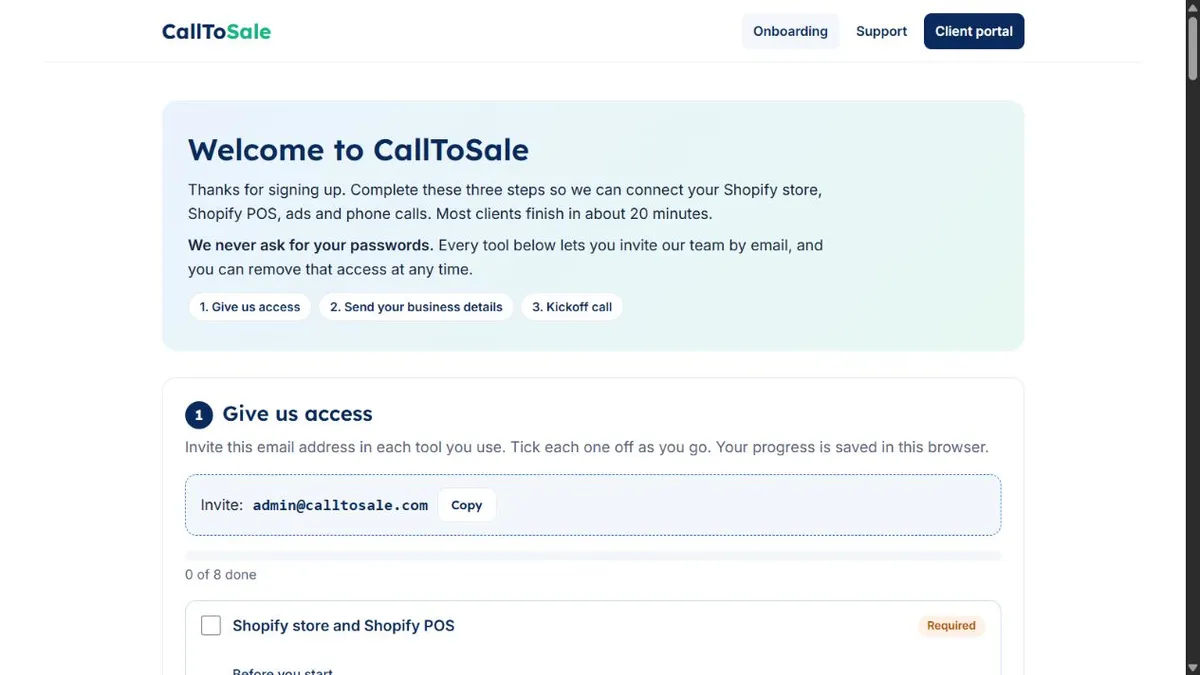
The live onboarding page starts with three clear steps. Open the full-size screenshot.
Step 1: invite CallToSale without sharing passwords
The invitation email shown on the page is [email protected]. Use Copy to reduce typing errors, then send invitations through each platform's own access controls. Keep your business as the owner. Do not email shared passwords, two-factor recovery codes or payment-card information. The person sending an invitation needs permission to manage access.
Expand each applicable checklist item. Shopify is required; several other entries are conditional. If you do not use GA4 or Google Tag Manager, you do not need to create an account merely to finish a checkbox. Tell the team what you use. Confirm permissions for the specific store, property, website container or advertising assets being connected.
Connect Shopify and Shopify POS
Open Shopify Admin and go to Settings → Users or Users and permissions. Use the available user invitation option. The current onboarding page identifies CallToSale Support and the relevant areas: orders, customers, analytics, reports, apps and channels, and Point of Sale. Roles vary by plan and organization setup, so review the invitation with the owner rather than selecting unrelated permissions to get past a screen.
If no staff seat is available, follow the collaborator option described on the live page. Share the collaborator request code through the agreed support route, review the request in Shopify and approve the access required for setup. Sending and accepting an invitation are separate steps. Check its status and tell the team if it remains pending.
CallRail can record an inquiry, but the Shopify order is the evidence that a purchase happened. Store and POS access help establish where sales are recorded, which location created them and whether a usable customer profile is attached. Permissions alone do not create a match: the order and contact data must also be consistent.
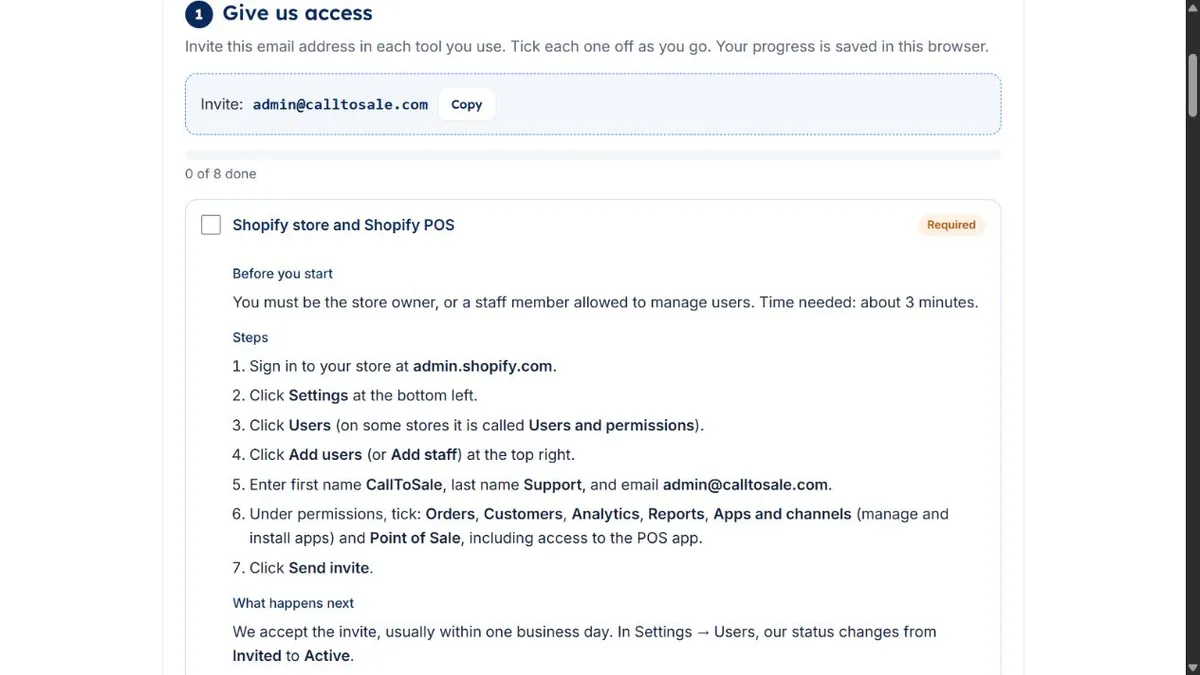
Expand the Shopify section to review access instructions. Open the full-size screenshot.
Add the advertising and analytics tools you use
Google Ads: the live guide directs an administrator to Admin → Access and security, then the Users invitation control. It requests Standard access and asks for the ten-digit customer ID in the business-details step. Check the selected account, especially if an agency manages several businesses. Standard is not a read-only role; coordinate the scope with your existing agency.
Google Analytics 4: select the property belonging to your website and open property access management. The onboarding guide requests Editor access. Confirm the property and website data stream instead of granting access to every property in an organization. If you are unsure which one is correct, flag the question for kickoff.
Google Business Profile: use People and access and the Manager role described in the guide. For multiple stores, identify the profile corresponding to each covered Shopify POS location. Keep the profile and store names together so phone activity is not associated with the wrong branch.
Meta: choose the correct business portfolio and identify the relevant ad account, Facebook Page and dataset or pixel. The live guide describes inviting the team and assigning those assets. Review the requested permissions and coordinate with the agency that manages them. Personal ad accounts or missing datasets may need assistance rather than the standard portfolio steps.
Google Tag Manager: complete this only if your site uses it. The live guide describes the account and website-container permissions, including Publish. Confirm the correct container and agree who publishes changes so two teams do not overwrite each other's work. Advertising access does not automatically grant Tag Manager access.
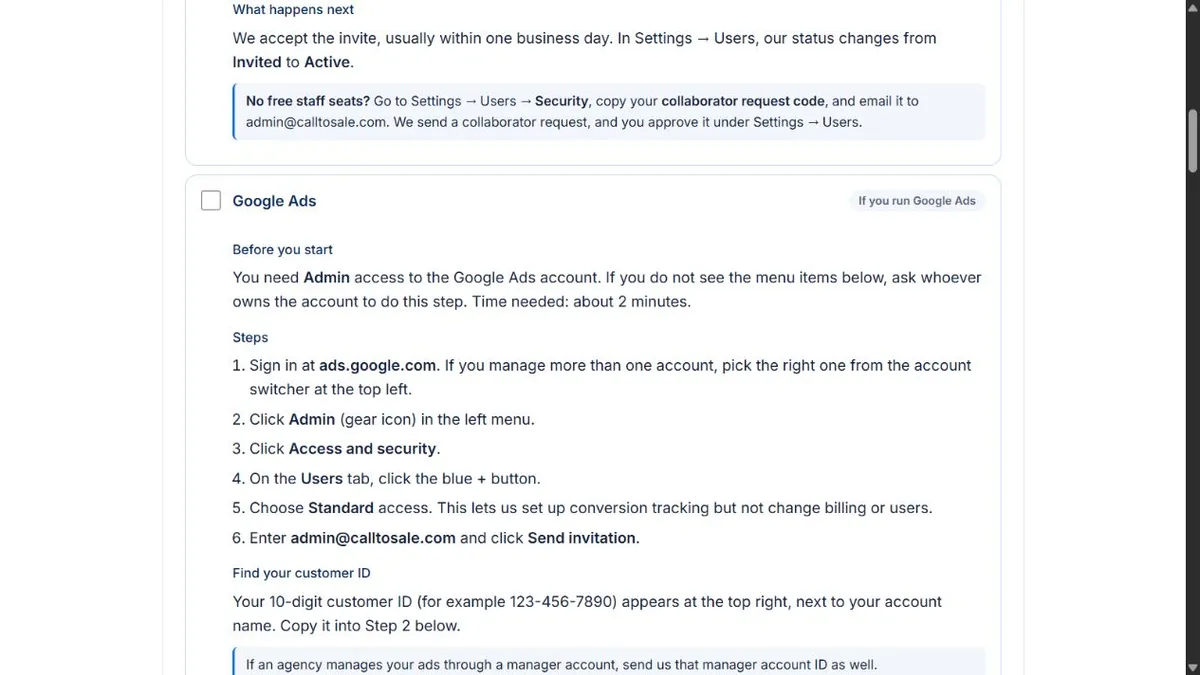
The Google Ads section identifies the invitation steps and customer ID. Open the full-size screenshot.
When separate website, CallRail and HighLevel access is needed
If your public website is not on Shopify, expand Website for the WordPress, Wix or Squarespace instructions. This supports agreed call-number and form-tracking work. Confirm the platform and access scope with your developer before granting a broad administrator role. If your website is already your Shopify store, the onboarding page says to skip the separate website step.
The CallRail and HighLevel checklist item is specifically for Connect clients who keep their own subscriptions. Invite the team to the relevant CallRail company/account and HighLevel sub-account. If these accounts contain other businesses, discuss the scope before granting access. Keep both provider subscriptions active; the Connect fee does not replace them.
Connect Plus, Insights and Multi-Store clients normally skip the existing-account invitation item because those plans include the advertised managed setup. Confirm the workspace and included features during kickoff. A managed plan and a completed checklist do not by themselves prove that recordings, text-back or conversion reporting have been configured and tested.
Step 2: send business details and confirm delivery
Enter your business name, plan, primary contact name and email. List every covered Shopify POS location with its name and address. Add the website and the phone numbers customers already call, one per location. This helps plan tracking without confusing a main line with a tracking number or changing routing without discussion.
Add advertising account IDs where applicable. If an employee or agency handles setup, complete the optional account-manager fields. Identify who rings up sales so register training reaches the people attaching customers to orders. Use the notes field for practical exceptions: deposits, phone orders, multiple websites, different location teams or a planned migration.
Send details opens a prepared email. Review that draft in your email application and send it. This is not a conventional server-submitted intake form. If email does not open, choose Copy details, paste the information into an email to [email protected] and send it yourself. Filling the boxes or opening the draft does not confirm delivery.
Keep the email focused on setup information. Do not attach customer exports, passwords or payment details. Arrange the appropriate method first if additional data is needed. If an invitation fails or you need help, use client support and describe the platform and blocked step.
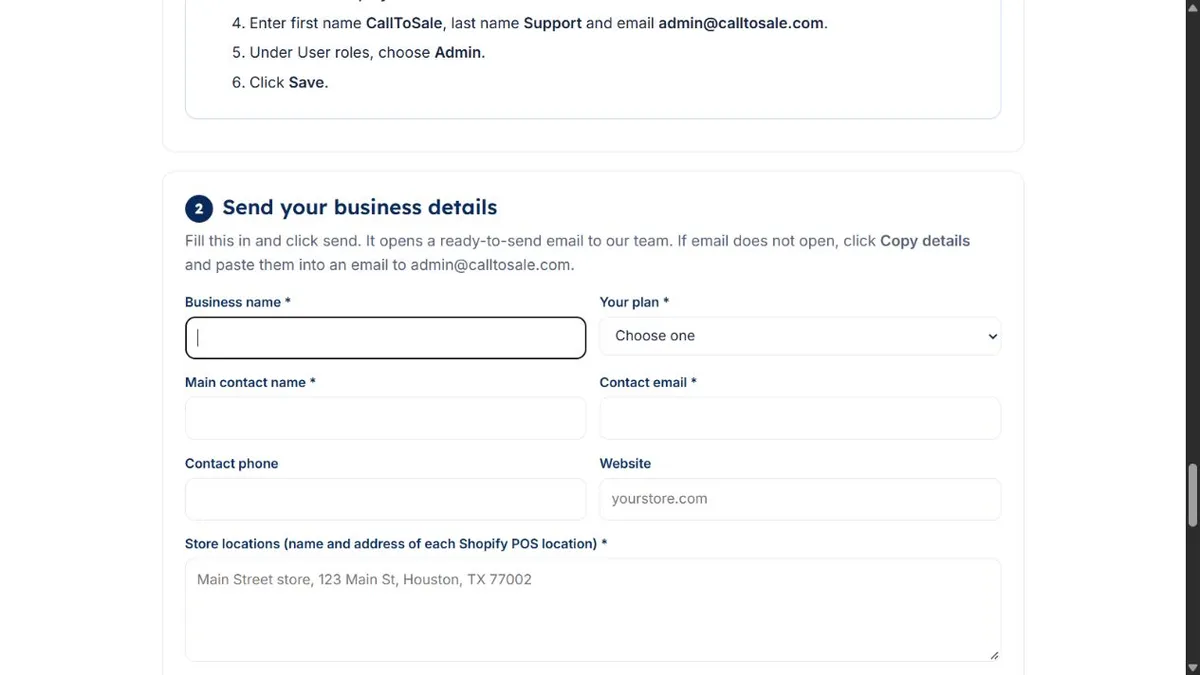
Enter your details, then review and send the prepared email. Open the full-size screenshot.
Step 3: use kickoff to agree how a sale will be matched
Kickoff confirms the setup and explains how calls, forms and recorded purchases fit together. Include the owner or account manager and, where practical, a register-team representative. Review websites, advertising accounts, phone routing, POS locations and outstanding invitations. The published timing is kickoff within three business days, with setup usually within ten business days after all required access is provided. Access gaps can delay work.
Agree on the purchase event and value being measured. A deposit, order placed, paid order and refund are different records. Decide how each is handled so a deposit and final payment do not accidentally become two sales. For multiple stores, confirm which location receives the revenue and which phone numbers belong to each branch.
Confirm the platforms included in your scope. Google Ads, Meta and Microsoft Ads have different identifier and event requirements. A diagram showing these channels does not establish that every account is integrated. Ask which connection and delivery checks apply to your accounts.
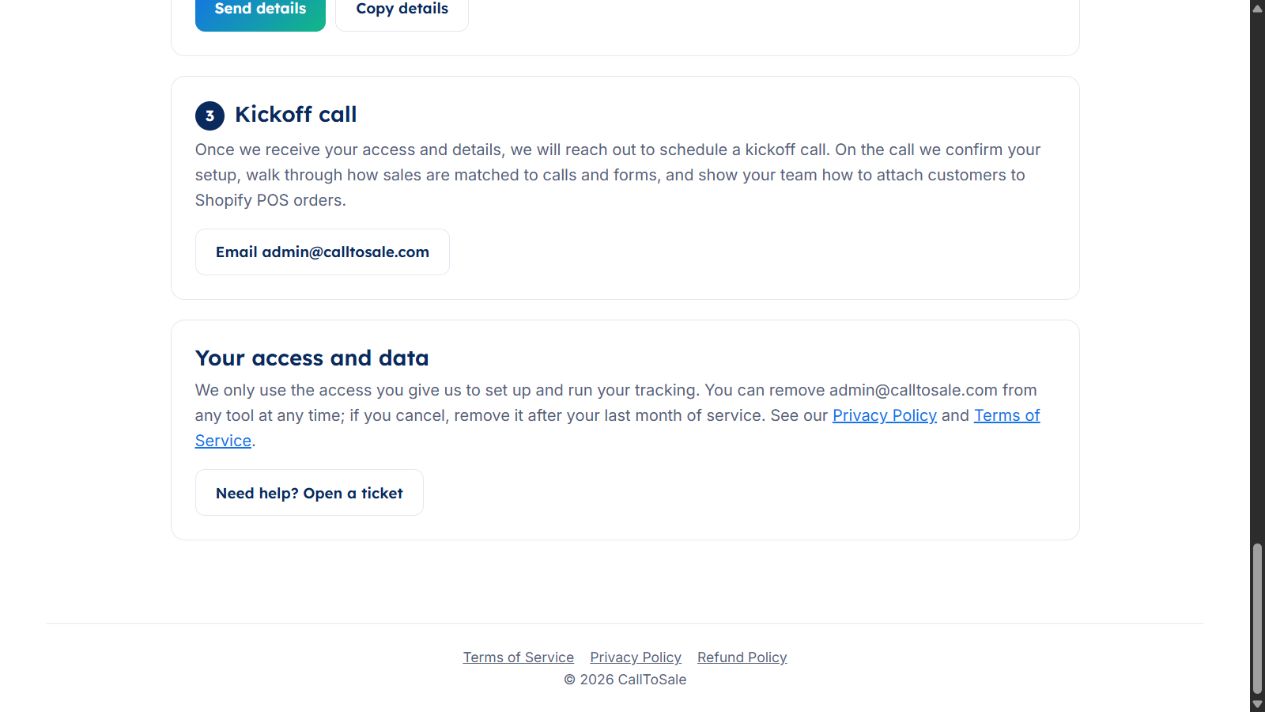
Kickoff covers your setup and the register team’s role. Open the full-size screenshot.
Train the register team to attach the customer to the purchase
Find or create the correct customer, confirm a usable phone number or email, and attach that profile to the Shopify POS order before completing payment. If someone called earlier, look for the existing profile rather than creating another record with different details. Anonymous orders may remain unmatched.
For a walk-in without an identifiable earlier inquiry, ask how they found the store and record that as a staff-reported source. An answer such as “Google” does not prove a paid ad click. Keep organic search, business-profile activity, referrals and returning customers distinct where supported.
CallRail supplies call information and available source details. HighLevel keeps the contact, source and configured follow-up together. Shopify and Shopify POS supply the recorded purchase. CallToSale connects those parts so reporting can move beyond inquiry counts toward matched buyers and revenue. Matching still depends on identifiers, consent, data quality and platform attribution rules.
What to verify before calling the setup live
Access: required invitations are accepted and the correct assets are selected.
Inquiry: an agreed test call or form creates the expected contact and source.
Purchase: a designated POS test order has the correct customer, location, value and order reference.
Matching: the contact and order connect without duplicate purchase events.
Reporting: the source and revenue appear in the configured report; eligible platform events are checked in diagnostics.
Exceptions: unmatched orders, refunds and cancellations have an agreed process.
Coordinate test transactions so they do not distort live revenue reports or send artificial purchases into advertising optimization. A connected account or successful event submission does not guarantee ad attribution for every purchase. Ask for the actual test outcome and limitations before relying on reports for budget decisions.
Keep your setup easy to maintain
Tell CallToSale before changing primary phone numbers, website forms, POS locations or advertising accounts. Keep the setup contact current. Review unmatched orders and customer-information coverage alongside revenue: a fall in matching may result from a register-process change rather than a marketing problem.
Manage access through each platform's controls and coordinate removal with service changes. The Privacy Policy, Terms of Service and Refund Policy explain the applicable policies. You retain ownership of your business accounts.
Ready to complete onboarding?
Open your onboarding checklist, complete the relevant invitations and send your details. If you get stuck, open a support ticket with the exact step. You can also review the tracking workflow and browse more Shopify POS tracking guides.
Frequently asked questions
Who is this onboarding guide for?
CallToSale clients using both Shopify and Shopify POS who want to connect marketing inquiries with recorded online and in-store purchases. If sales are completed in another system, confirm a separate integration scope first.
Do I need to share passwords?
No. Invite [email protected] through each relevant platform's access controls. Keep account ownership and never email passwords, recovery codes or payment-card details.
Which steps are required?
Shopify and POS access, business details and kickoff are the foundation. Add advertising, analytics, Tag Manager or separate website access only when those tools are part of the agreed setup.
Do Connect clients need existing CallRail and HighLevel accounts?
Yes. Connect requires active paid subscriptions to both providers, which you pay separately. Connect Plus, Insights and Multi-Store include their advertised managed services, so clients normally skip the existing-account invitation step.
Does Send details automatically submit the form?
No. It opens a prepared email. Review and send that draft. If email does not open, use Copy details and paste the information into an email to [email protected]. Filling out the form alone does not confirm delivery.
How long does onboarding take?
The page estimates about 20 minutes for the access and details steps when the owner is available. Kickoff is within three business days; setup is usually within ten business days after all required access is provided. Missing permissions can delay setup.
What should staff do at the POS register?
Find or create the correct customer, confirm usable contact details and attach the customer to the Shopify POS order before completing the purchase. Accurate phone or email details support matching; anonymous orders may remain unmatched.
What if I cannot find a menu or need help?
Menus and user seats vary by platform and plan. Ask the owner or existing agency for help and contact CallToSale through client support. Describe the platform and blocked step without sending passwords or sensitive customer records.